. Close Thunderbird
- Ensure Thunderbird is not running to avoid database lock.
- You can check with: pgrep thunderbird
- If it’s running, close it from the UI or run: pkill thunderbird
- Locate your Thunderbird profile directory
- Thunderbird profiles are stored in ~/.thunderbird/
- List the directories: ls ~/.thunderbird/*
- Look for a folder ending with .default-release or .default (e.g., x112dgtq.default-default)
- Inside that profile, the calendar data is in:
~/.thunderbird//calendar-data/local.sqlite
-
Make a safe copy of the calendar database (recommended)
- cp ~/.thunderbird//calendar-data/local.sqlite /tmp/calendar_backup.sqlite
- Work on the copy to avoid corrupting the live database.
-
Install sqlite3 if not already present
- On Gnoppix: sudo apt-get install sqlite3
- Verify: sqlite3 --version
- Examine the database structure
- sqlite3 /tmp/calendar_backup.sqlite “.tables”
- You will see tables like cal_events, cal_todos, cal_alarms, etc.
- View the columns of the events table
- sqlite3 /tmp/calendar_backup.sqlite “PRAGMA table_info(cal_events);”
. Query existing events (if any)
- Example: Show title, start and end times (Unix timestamp seconds)
sqlite3 /tmp/calendar_backup.sqlite "
SELECT id, title,
datetime(event_start, ‘unixepoch’) AS start_time,
datetime(event_end, ‘unixepoch’) AS end_time,
location
FROM cal_events
ORDER BY event_start;
" - If the table is empty, you currently have no local events.
- (Optional) Convert timestamps to a more readable format in bash
- You can use a small script or one-liner to convert the INTEGER timestamps.
- Adding or editing events (use with caution!)
- Directly editing the SQLite database can corrupt your calendar if done incorrectly.
- Always backup first and test on a copy.
- Example INSERT (adjust values):
INSERT INTO cal_events (id, title, event_start, event_end, event_stamp, time_created, last_modified, priority, privacy, ical_status,
flags, event_start_tz, event_end_tz)
VALUES (
‘generated-id-123’,
‘Meeting with Team’,
strftime(‘%s’, ‘2026-06-10 14:00:00’)*1000, – milliseconds since epoch (Thunderbird uses ms)
strftime(‘%s’, ‘2026-06-10 15:00:00’)*1000,
strftime(‘%s’, ‘2026-06-10 14:00:00’)*1000,
strftime(‘%s’, ‘now’)*1000,
strftime(‘%s’, ‘now’)*1000,
0, – priority (0 = none)
‘0’, – privacy (0 = public)
‘TENTATIVE’, – ical_status
0, – flags
‘UTC’, – event_start_tz
‘UTC’ – event_end_tz
); - Note: Thunderbird stores timestamps in **milliseconds** since the Unix epoch. Adjust accordingly.
- After making changes (if any), copy the file back (only if you are sure)
- cp /tmp/calendar_backup.sqlite ~/.thunderbird//calendar-data/local.sqlite
-
Restart Thunderbird and verify your changes appear in the Calendar tab.
-
Alternative: Use command-line calendar tools that can read the same SQLite format
- Install khcal (KDE) or use a Python script with the sqlite3 module to list/add events without touching Thunderbird.
Safety Tips
- Never edit the live database while Thunderbird is running.
- Always keep a backup before making modifications.
- If you are unsure, use Thunderbird’s GUI to manage events; direct SQLite editing is for advanced users or automation.
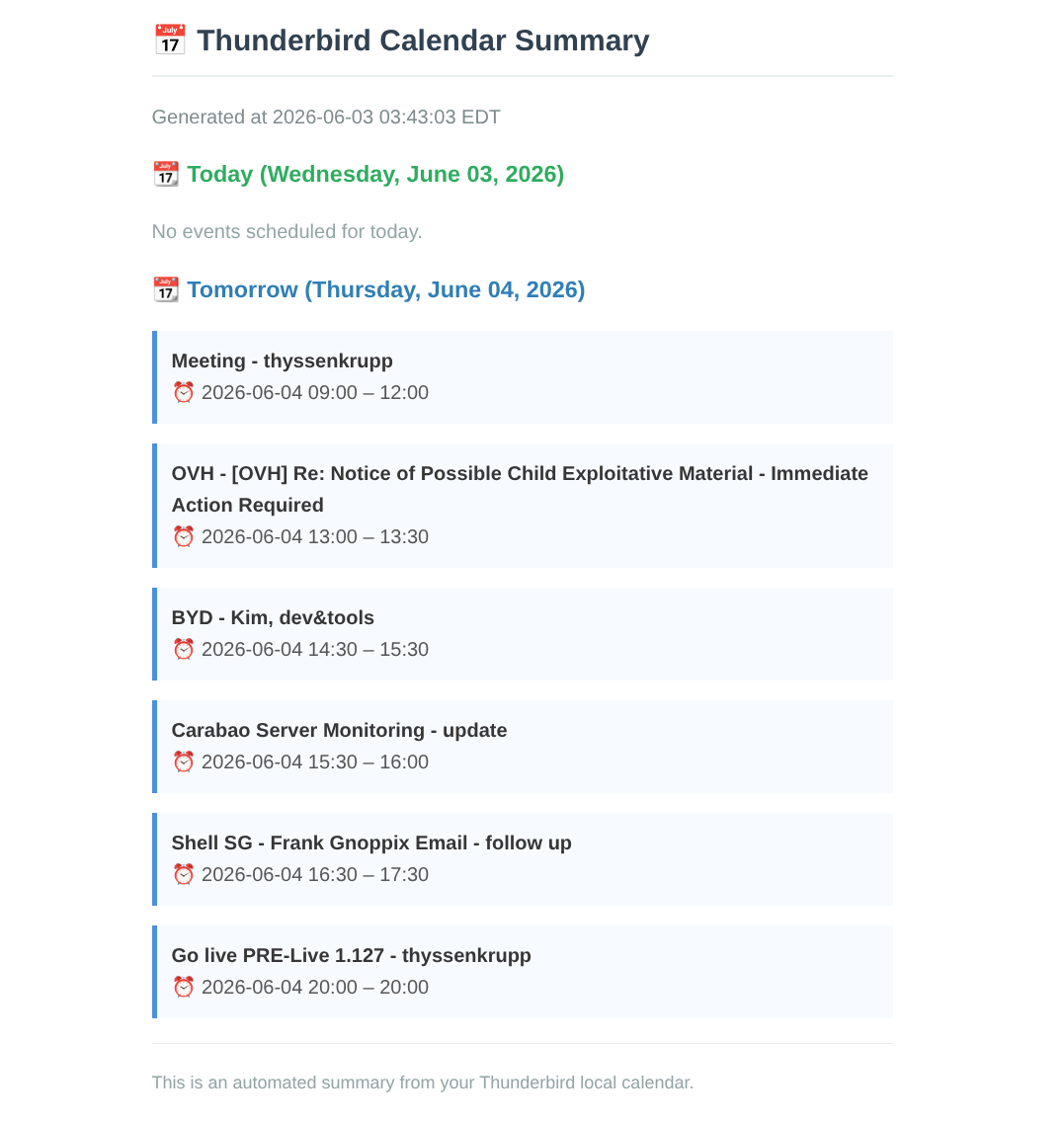
Alternative way : start hermes and type: “Read my upcoming meetings from my local Betterbird calendar. At 06:30, create an overview of today’s meetings followed by tomorrow’s meetings in a modern HTML email. Send it via local mail to events@domain.com.”